
Last Updated: August 2026
Have you ever seen a photo online and wondered where it came from or whether the same photo has been shared on other websites?
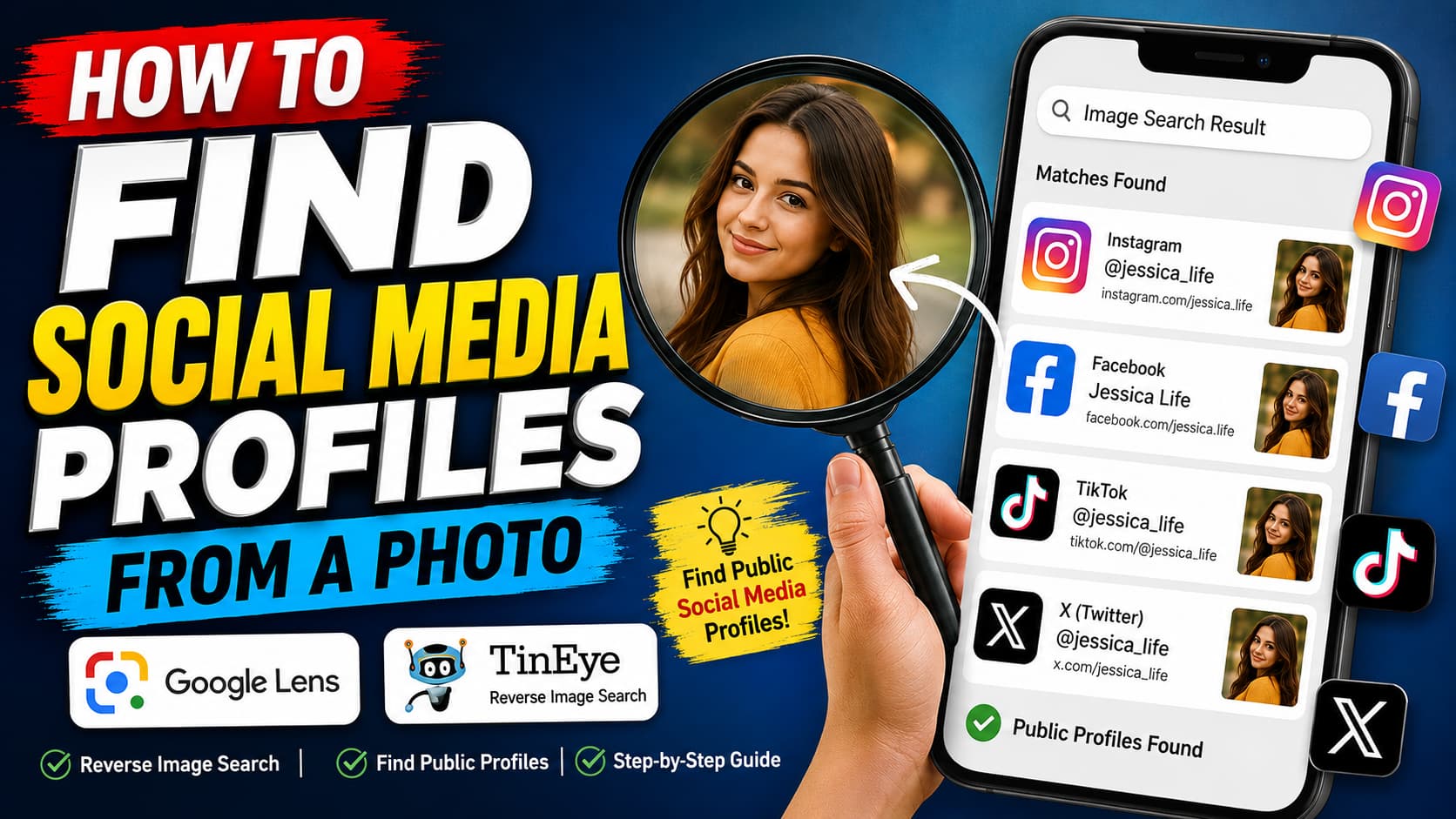
With reverse image search, you can use a photo as your search query instead of typing keywords. Tools such as Google Lens and TinEye can help you find visually similar images, matching copies, and publicly available webpages where an image appears.
This guide explains how to use these tools responsibly to research images and discover publicly available information.
«Important: Reverse image search should not be used to track people, identify private individuals, access private accounts, or collect someone’s personal information. Always respect privacy and use publicly available information responsibly.»
What Is Reverse Image Search?
Reverse image search is a technology that allows you to search the internet using an image instead of text.
You can upload a photo or provide an image URL, and the search service looks for matching or visually similar images across its index.
It can be useful for:
– Finding the source of a photo
– Discovering duplicate images
– Finding publicly available webpages containing an image
– Checking whether an image has been reused
– Finding a higher-quality version
– Researching an unfamiliar picture
—
Can You Find a Social Media Profile Using a Photo?
Sometimes a reverse image search may lead to a publicly indexed social-media page where the same image appears.
However, this is not guaranteed.
A photo may have been:
– Reposted by another user
– Cropped or edited
– Uploaded to several websites
– Published without the original creator’s name
– Used as a profile image on a public account
Search engines cannot reliably confirm that a particular social-media account belongs to the person shown in a photograph.
Therefore, treat search results as clues rather than proof of someone’s identity.
—
Method 1: Use Google Lens
Google Lens is one of the easiest ways to search using an image.
Step 1: Open Google Lens
Open Google Lens through the Google app or a compatible browser.
Step 2: Upload Your Photo
Select the image you want to investigate from your phone or computer.
Step 3: Select the Important Area
If the image contains several objects, select the part that is most relevant.
For example, you can focus on:
– A logo
– Product
– Building
– Artwork
– Text
– Other recognizable objects
Step 4: Check the Results
Google Lens may show:
– Similar images
– Related information
– Public webpages
– Visually similar content
Why People Search for Social Media Accounts Using Photos
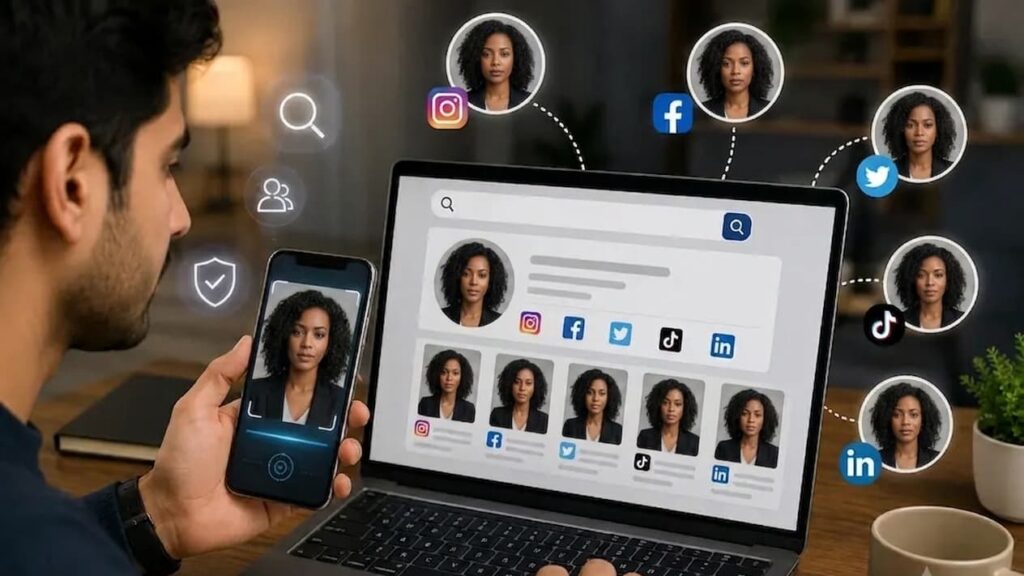
If a public social-media page contains the same image and is indexed by search engines, it may appear among the results.
—
Method 2: Use TinEye
TinEye is another reverse image search service that can help find matching versions of an image.
You can upload an image or search using an image URL.
TinEye can be useful for discovering where an image appears across the web and finding versions that may have been cropped, resized, or modified.
How to Use TinEye
1. Open TinEye.
2. Upload your image.
3. Wait for the search results.
4. Review matching webpages.
5. Compare the different versions of the image.
Don’t assume that the first result is automatically the original source.
—
Search for Text, Usernames, or Watermarks
Sometimes the best way to find the public source of a photo isn’t reverse image search alone.
Look carefully at the image for:
– Username
– Website address
– Watermark
– Logo
– Brand name
– Visible text
If you find a username or distinctive phrase, you can search for it separately.
For example, if a public image contains a visible username such as @example, search that exact username on the relevant platform.
This method can be more useful than trying to identify a person from their face.
Related Article:
[https://aitoolbd.com/best-ai-writing-tools-in-2026-top-tools-for-better-content/]
—
Search Different Versions of the Same Photo
If your first search doesn’t produce useful results, try another version of the image.
Try the Full Image
Upload the complete image first.
Crop the Main Subject
If the image contains a lot of unnecessary background, crop it and search again.
Crop Visible Text
If there is a logo, username, or other text, search that area separately.
Try Multiple Search Tools
Google Lens and TinEye may produce different results, so using both can give you a broader picture.
—
How to Verify a Social Media Result
Finding a similar photo does not prove that you found the correct account.
Before trusting a result, check:
1. Whether the image is actually the same.
2. Whether the page is publicly accessible.
3. Whether the context matches.
4. Whether the account or website appears legitimate.
5. Whether the information comes from a reliable public source.
Avoid contacting or following someone simply because a reverse image search produced a similar photograph.
—
Privacy and Safety
Photos can contain personal information, including faces, locations, documents, usernames, or other identifying details.
Use reverse image search responsibly.
Do not use it to:
– Track someone’s location
– Discover private accounts
– Collect personal information
– Harass someone
– Impersonate another person
– Circumvent privacy settings
If you are searching for your own photo, reverse image search can be particularly useful for discovering where your publicly available images have been reused.
—
Copyright: Can You Reuse a Photo You Find?
No.
Finding a photo through Google Lens or TinEye does not automatically give you permission to download, publish, or commercially use it.
Before reusing an image, check:
– Who created it
– Whether it has a copyright notice
– Whether a license is provided
– Whether commercial use is allowed
– Whether attribution is required
When possible, use images that you have created yourself or images with appropriate licenses.
—
Best Tools for Reverse Image Search
Here are two useful options:
Google Lens
Best for discovering similar images, objects, text, and related webpages.
Official Tool:
Find Social by Photo
[https://facecheck.id/]
Photo Social Search
TinEye
Best for finding matching and modified versions of images across the web.
Frequently Asked Questions
Can I find someone’s social media account from a photo?
A reverse image search may sometimes find a publicly indexed page containing the same image, but it cannot reliably identify someone’s account. It should not be used to discover private accounts or personal information.
Is Google Lens free?
Google Lens provides image-search functionality through Google’s services. Available features can change over time.
Is TinEye free?
TinEye offers reverse image search functionality, with available features and usage limits depending on its current service.
Can reverse image search find private Instagram or Facebook accounts?
Private accounts and content that are not publicly indexed generally will not appear in ordinary reverse image search results.
Can I find the original creator of a photo?
Sometimes. Reverse image search can help locate webpages containing the image, but additional research may be needed to determine the original creator.
—
Final Thoughts
Reverse image search is a useful technology for researching photos and finding publicly available information online.
Google Lens can help discover similar images, objects, text, and related webpages, while TinEye can help find matching versions of an image.
If you’re trying to find a public source or determine where an image has been reused, these tools can save a lot of time.
However, always respect privacy, copyright, and the rights of the people shown in photographs.
—
Share on Facebook:
[https://www.facebook.com/share/19JWDQbZuw/]
—
SEO Settings
Focus Keyword:
“find social media profiles from a photo”
Secondary Keywords:
– reverse image search
– search social media by photo
– search by image
– Google Lens
– TinEye
– find photo source
– reverse image search tools